How to Activate eSIM on iPhone 14: A Comprehensive Guide
The evolution of mobile technology has consistently aimed at making devices more efficient, user-friendly, and versatile. A significant leap in this direction is the transition from physical SIM cards to embedded SIMs (eSIMs), a change that the iPhone 14 embraces wholeheartedly. This shift marks a pivotal moment in telecommunications, offering users unprecedented flexibility and convenience.
eSIM technology eliminates the need for physical SIM cards and the tiny trays that house them. Instead, it integrates the SIM functionality directly into the device's hardware, allowing users to activate cellular plans from their phone settings without needing a physical SIM card. This innovation is not just about saving space; it's about revolutionizing how we connect with mobile networks.
For iPhone 14 users, the benefits of using an eSIM are manifold. Firstly, it simplifies the process of switching between carriers. Whether you're looking to change your service provider or need a local data plan while traveling abroad, eSIM technology makes it possible with a few taps on your screen. Secondly, it supports multiple lines, enabling you to have separate numbers for personal and business use on the same device. This dual functionality is particularly appealing for professionals and anyone looking to streamline their mobile communication.
As we delve into the specifics of activating an eSIM on the iPhone 14, it's clear that this technology is not just a step forward; it's a leap towards a future where our devices are more integrated into our lives than ever before. The convenience, flexibility, and efficiency offered by eSIM technology herald a new era in mobile telecommunications, one that promises to make our connections to the world around us more seamless and personalized.
What is eSIM?
Embedded SIM (eSIM) technology represents a significant shift in the way mobile devices connect to cellular networks. Unlike traditional SIM cards, which require physical insertion into a device, an eSIM is built directly into the smartphone's hardware. This small digital SIM card allows users to activate a cellular plan from their carrier without the need for a physical counterpart.
The eSIM technology offers a level of convenience and flexibility previously unattainable with traditional SIM cards. For iPhone 14 users, this means the ability to quickly switch between carriers or data plans directly from their device settings, without the need to visit a store or swap out tiny SIM cards. This is particularly advantageous for travelers who can now subscribe to local data plans when abroad, directly from their phone, avoiding roaming charges.
Moreover, eSIMs support the provisioning of multiple accounts and phone numbers on a single device. This capability is ideal for managing personal and business lines separately or for having local and international numbers on the same phone. The iPhone 14, with its eSIM technology, empowers users to enjoy a more streamlined and efficient mobile experience, offering a glimpse into the future of telecommunications where physical SIM cards become a relic of the past.
Preparing to Activate eSIM on iPhone 14

Before diving into the activation process of an eSIM on your iPhone 14, there are several preparatory steps you should take to ensure a smooth and successful setup. These preliminary measures are crucial for a hassle-free experience, enabling you to enjoy the benefits of eSIM technology without any unnecessary complications.
Check Carrier Compatibility: Not all carriers support eSIM technology, so it's essential to verify that your mobile service provider offers eSIM services for the iPhone 14. Most major carriers do, but availability can vary, especially in certain regions or with smaller carriers.
Ensure Internet Connectivity: An active internet connection is required to activate your eSIM. Whether through Wi-Fi or a physical SIM card's cellular data, ensure your device can connect to the internet to download the eSIM profile from your carrier.
Update Your iPhone: Running the latest version of iOS ensures that your device has all the necessary updates for eSIM activation and use. Check for any available software updates by going to Settings > General > Software Update and install any pending updates.
Carrier Account Details: Have your carrier account information readily available. Depending on the activation method, you may need your account details, such as your login credentials or a specific activation code provided by your carrier.
Backup Your Data: Although activating an eSIM typically doesn't affect the data on your device, it's always a good practice to backup your iPhone before making significant changes. Use iCloud or iTunes to secure your data.
By following these preparatory steps, you're setting the stage for a straightforward eSIM activation on your iPhone 14. With everything in place, you're now ready to proceed with the actual activation process, bringing you one step closer to enjoying the full potential of your device's eSIM capability.
How to Activate eSIM on iPhone 14: Step-by-Step Guide

Activating an eSIM on your iPhone 14 is a straightforward process that can be completed in a few simple steps. Depending on your carrier and the method they support, you can activate your eSIM by scanning a QR code, using a carrier app, or entering the information manually. Here's how to do each:
Starting the Activation Process
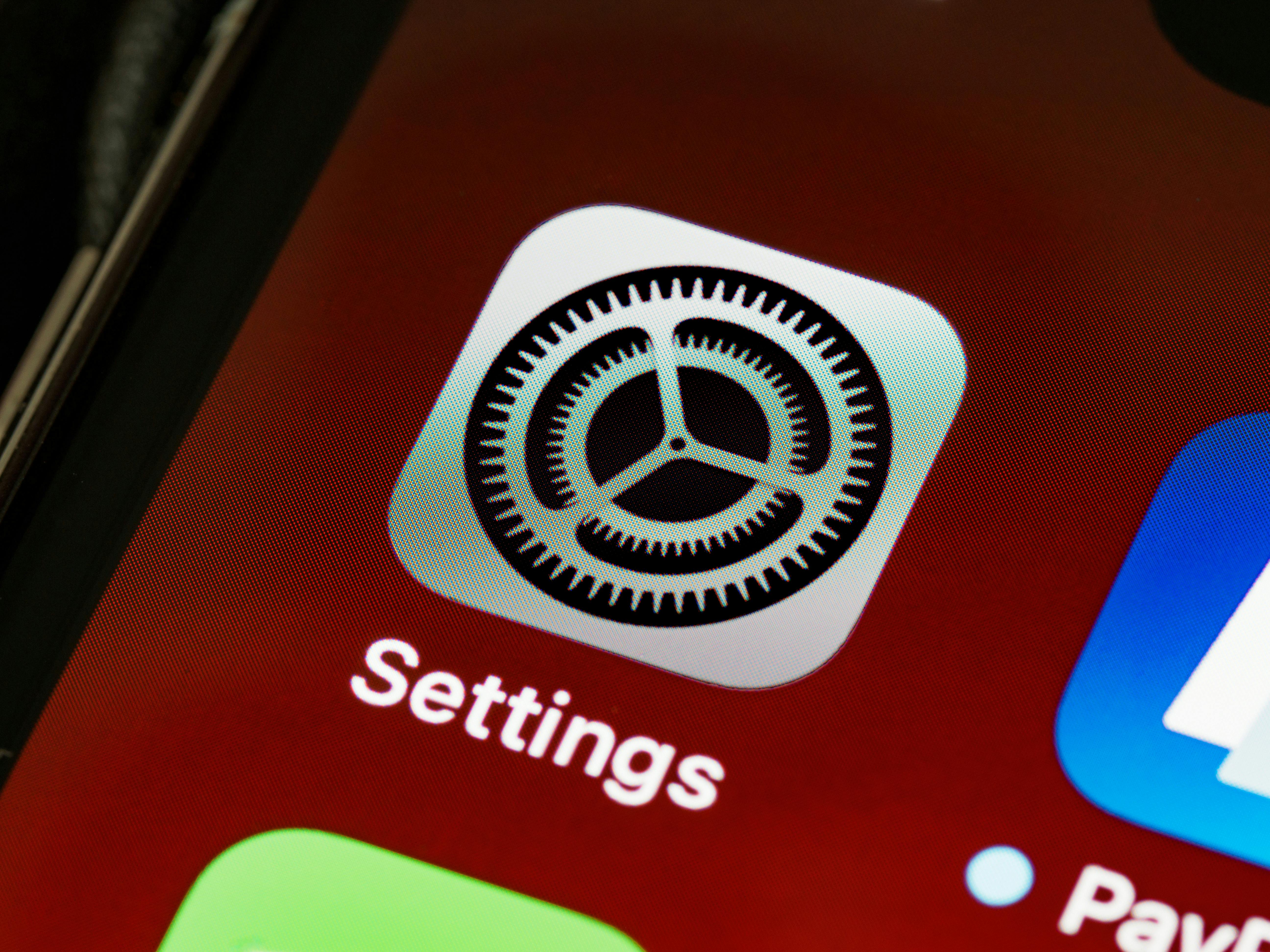
- Open the Settings app on your iPhone 14.
- Tap on Cellular or Mobile Data, then select Add Cellular Plan.
Choosing Your Activation Method
The method of activation can vary based on your carrier's preferences. Here are the most common methods:
Activating eSIM via QR Code
Your carrier may provide a QR code to activate your eSIM. To use this method:
- Select "Add Cellular Plan" and scan the QR code provided by your carrier with your iPhone's camera.
- Follow the on-screen instructions to complete the setup. You might need to enter a confirmation code provided by your carrier.
Activating eSIM via Carrier App
Some carriers offer a dedicated app for eSIM activation:
- Download your carrier's app from the App Store.
- Open the app and follow the app's instructions to add an eSIM plan to your iPhone 14.
- The app should automatically configure your eSIM without needing to scan a QR code.
Manual eSIM Activation
If you cannot use the above methods, you can enter the eSIM information manually:
- Go to Settings > Cellular > Add Cellular Plan.
- Choose "Enter Details Manually" at the bottom of your iPhone screen.
- Enter the information provided by your carrier, such as the SM-DP+ address, Activation Code, and, if necessary, a confirmation code.
Setting Up Cellular Plans on eSIM
After successfully activating your eSIM on the iPhone 14, the next step is to manage and customize your cellular plans to fit your needs. The iPhone 14 allows for considerable flexibility in managing multiple eSIM profiles, which can be particularly useful for users who travel frequently or wish to separate personal and business lines. Here’s how to efficiently manage these plans:
Adding Multiple eSIM Profiles:
Your iPhone 14 can store more than one eSIM profile, though only one can be used at a time for cellular data. To add another eSIM, repeat the activation process for each new plan you wish to add. This feature is ideal for travelers who need to switch between local carriers or anyone who wants to take advantage of different data plans.
Naming Your eSIM Plans:
- For ease of identification, you can name each eSIM plan according to its purpose (e.g., "Work," "Travel," "Home"). To rename a plan, go to Settings > Cellular, select the plan, then tap on "Cellular Plan Label" to choose a new label or create a custom name.
Selecting Your Default Line:
- The iPhone 14 allows you to designate a default line for calls, messages, and data. To set this up, go to Settings > Cellular, and under "Default Voice Line," select your preferred line. This is particularly useful if you maintain separate numbers for personal and business use.
Switching Between eSIMs for Data:
- You can switch which eSIM is used for cellular data without affecting your default voice line. Navigate to Settings > Cellular, tap on "Cellular Data," and then select the plan you wish to use for data. This flexibility allows you to optimize data usage across different carriers or plans based on coverage and cost.
By effectively setting up and managing your cellular plans on the iPhone 14’s eSIM, you can maximize the device’s potential to suit your lifestyle. Whether it’s managing business and personal lines or optimizing data plans while traveling, the eSIM technology offers unparalleled convenience and efficiency.
Troubleshooting Common eSIM Activation Issues
Even with the streamlined process of activating an eSIM on the iPhone 14, users may occasionally encounter issues. Here are some common problems and their solutions to help ensure a smooth activation and usage experience.
Issue 1: Activation Error Messages
If you receive an error message during the activation process, first ensure that your iPhone is connected to a stable internet connection. If the problem persists, restart your iPhone and attempt the activation again. Should the issue continue, contact your carrier to verify that the eSIM profile has been correctly set up and activated on their end.
Issue 2: Unable to Connect to Cellular Network
After activating your eSIM, if you find yourself unable to connect to the cellular network, check your iPhone's settings to ensure the correct eSIM profile is enabled for cellular data. Go to Settings > Cellular, and make sure the toggle next to your eSIM plan is turned on. If the problem remains, try toggling Airplane Mode on and off to reset your network connection.
Issue 3: eSIM Profile Not Showing
If your eSIM profile does not appear in your iPhone's settings, ensure that the activation process was completed successfully. If you were attempting to transfer your eSIM from another device, confirm that the transfer was finalized. In cases where the profile still doesn't show, a restart of your device might help. If not, reaching out to your carrier for assistance is advisable.
Issue 4: Switching Between eSIMs
Some users may experience difficulty when trying to switch between multiple eSIM profiles. Remember, while you can store multiple eSIM profiles on your iPhone 14, only one can be active for cellular data at a time. To switch, go to Settings > Cellular, select the plan you wish to activate, and ensure the toggle is enabled.
Encountering issues during eSIM activation or use can be frustrating, but these troubleshooting tips cover the most common problems. For issues that persist beyond these solutions, contacting your carrier's customer support will be the next best step, as they can provide specific assistance and, if necessary, reset or reissue your eSIM profile.
Maximizing Your iPhone 14’s eSIM Capabilities
Leveraging the full potential of your iPhone 14's eSIM technology can significantly enhance your mobile experience, offering unparalleled convenience and flexibility. Here are some tips to maximize the benefits of your device's eSIM capabilities:
Travel with Ease: One of the greatest advantages of eSIM technology is the ability to easily switch to local carriers when traveling abroad. Before your trip, research local carriers that offer eSIM plans and activate a new plan directly from your iPhone 14. This approach not only saves you from hefty roaming charges but also ensures you're always connected with the best available network.
Manage Work and Personal Lines: With eSIM, you can maintain separate lines for work and personal use on the same device. This separation helps manage your work-life balance more effectively, ensuring you can easily switch off from work during your personal time. Customize each plan's label for easy identification and set specific ringtones for each line to differentiate between work and personal calls.
Optimize Data Plans: If you have access to multiple eSIM plans, you can switch between them to utilize the best data rates or coverage areas. This is particularly useful in regions where network coverage varies significantly between carriers. Regularly review your data usage and switch plans as needed to ensure you're always getting the best value.
By taking full advantage of the eSIM capabilities on your iPhone 14, you can enjoy a more connected, efficient, and tailored mobile experience that suits your lifestyle and needs.
Conclusion: How to Activate eSIM on iPhone 14

Activating and managing an eSIM on the iPhone 14 heralds a new era of convenience and flexibility in mobile telecommunications. By following the steps outlined in this guide, you can effortlessly activate your eSIM, switch between multiple carriers, and manage different cellular plans to suit your lifestyle.
Whether you're a frequent traveler, someone who juggles multiple lines for work and personal use, or simply looking to optimize your data plans, the eSIM technology in the iPhone 14 offers a seamless solution. Embrace the future of mobile connectivity by leveraging the power of eSIM on your iPhone 14, and enjoy the unparalleled freedom it brings to your mobile experience. Remember, for any issues encountered during the activation process, troubleshooting tips can provide quick fixes, and your carrier's customer support is always there to assist with more complex problems. Welcome to the age of eSIM – where flexibility meets functionality.
FAQs
Q: Can I use my eSIM on multiple devices?
A: No, an eSIM is designed to be used on a single device at a time. However, you can transfer your eSIM profile to a new device if needed, following your carrier's specific process.
Q: Will activating an eSIM affect my physical SIM?
A: No, activating an eSIM will not affect the functionality of a physical SIM if your device supports dual SIM capabilities, allowing you to use both simultaneously.
Q: How do I switch between eSIM profiles?
A: To switch between eSIM profiles, go to Settings > Cellular, and tap on the plan you wish to use. Then, toggle it on as your active plan. Remember, only one eSIM profile can be used for cellular data at a time.
Q: Can I have an eSIM and a physical SIM active at the same time?
A: Yes, the iPhone 14 supports dual SIM capabilities, allowing you to have both an eSIM and a physical SIM active simultaneously. This setup is ideal for separating personal and business lines or for international travelers.
Q: What should I do if my eSIM activation fails?
A: If your eSIM activation fails, first ensure you have a stable internet connection and that your iPhone is updated to the latest iOS version. If the issue persists, restart your device and try again. If you still face difficulties, contact your carrier for further assistance.
Unlock seamless global connectivity for your iPhone 14 with our International Data eSIM plans – your gateway to staying connected, wherever you roam.
Further Reading
For those looking to deepen their understanding of eSIM technology and its benefits, here are some curated resources.
- Apple's Official eSIM Support Page: Gain a comprehensive understanding of how to use eSIM on your iPhone directly from the source. Apple provides detailed guides and support articles to help users navigate eSIM technology.
- GSMA's Introduction to eSIM: The GSMA (Global System for Mobile Communications) offers insights into the eSIM technology standards and its implications for the mobile industry. This resource is perfect for those interested in the technical and regulatory aspects of eSIM technology.
- TechRadar's Guide to eSIM: For a third-party perspective, TechRadar offers articles and guides on eSIM technology, including comparisons, how-tos, and the future of mobile connectivity. Their content provides a broad overview suitable for consumers looking to understand the technology better.